
New in H2R Gear v2.13
Draw the room around your gear with new shapes, symbols and a drawing toolbar.
Read more →New in H2R Gear v2.13
Draw the room around your gear with new shapes, symbols and a drawing toolbar.
Read more →Drawing tools let you sketch the room around your gear. Mark out the stage, tables and walkways, then drop in people, chairs, mics, speakers and lights so your plan shows the whole space, not just the signal flow.
Drawing tools are free on every plan.
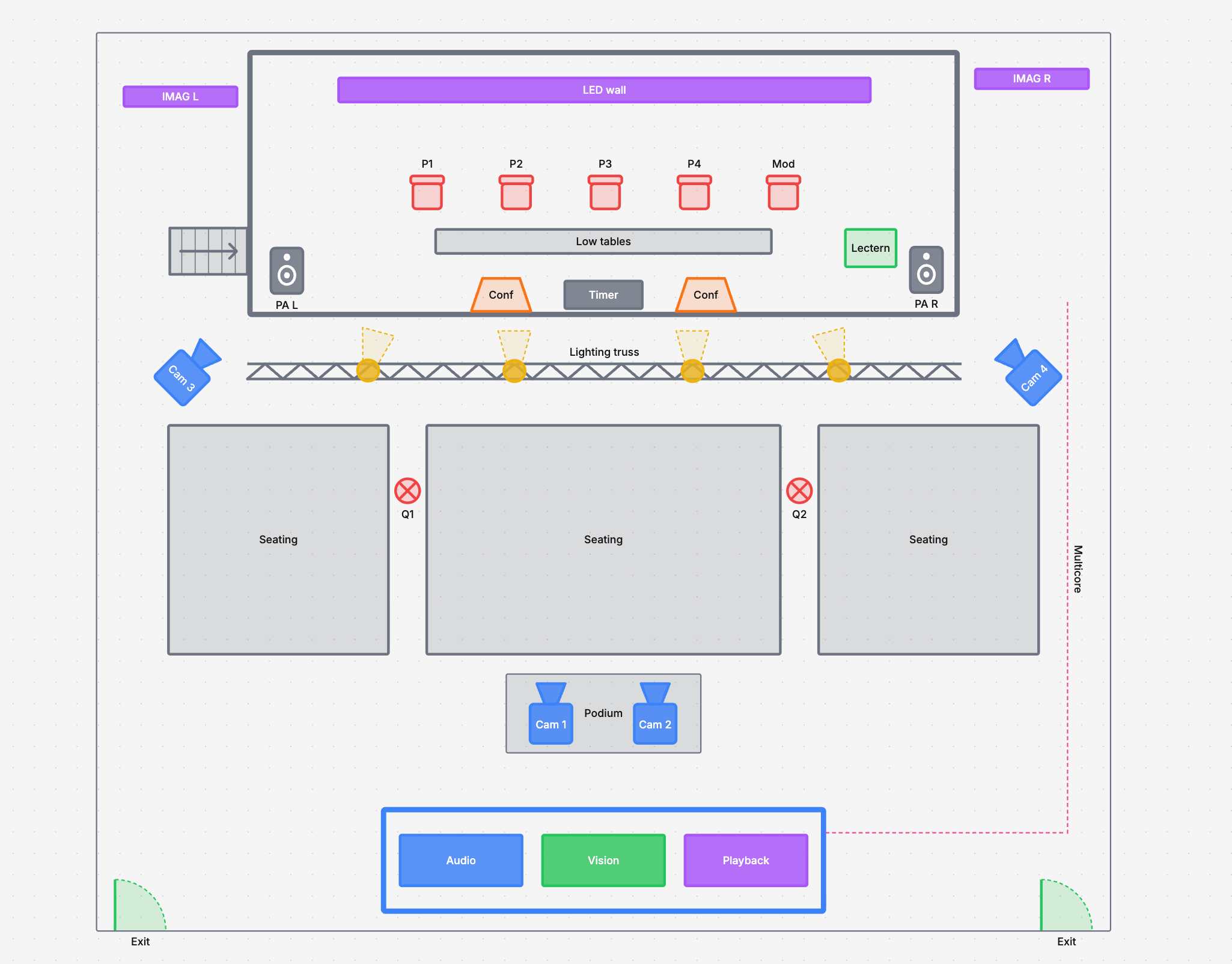
Open Add › Drawing tools in the plan editor and pick a shape or symbol. It is added to your plan, ready to move into place.
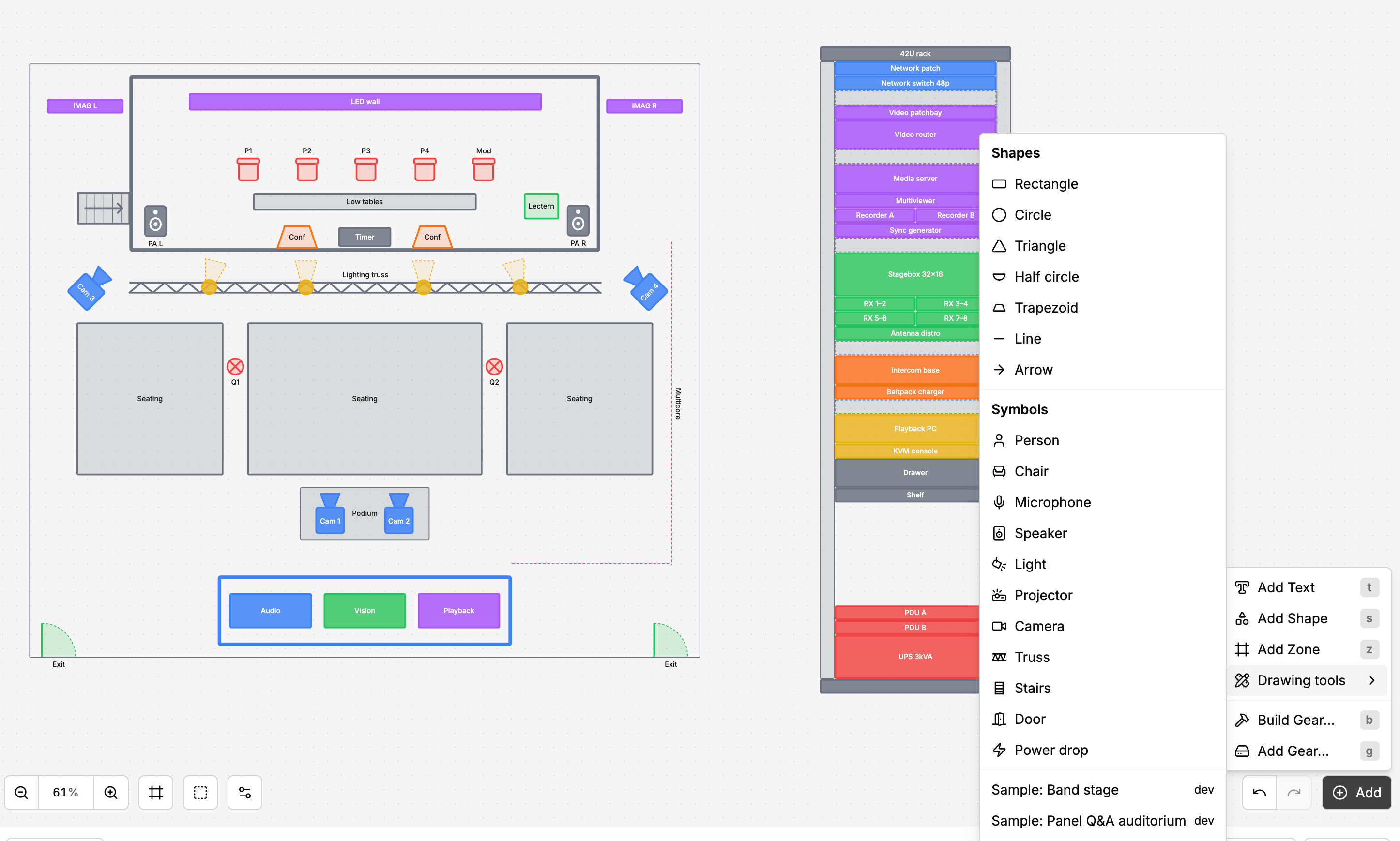
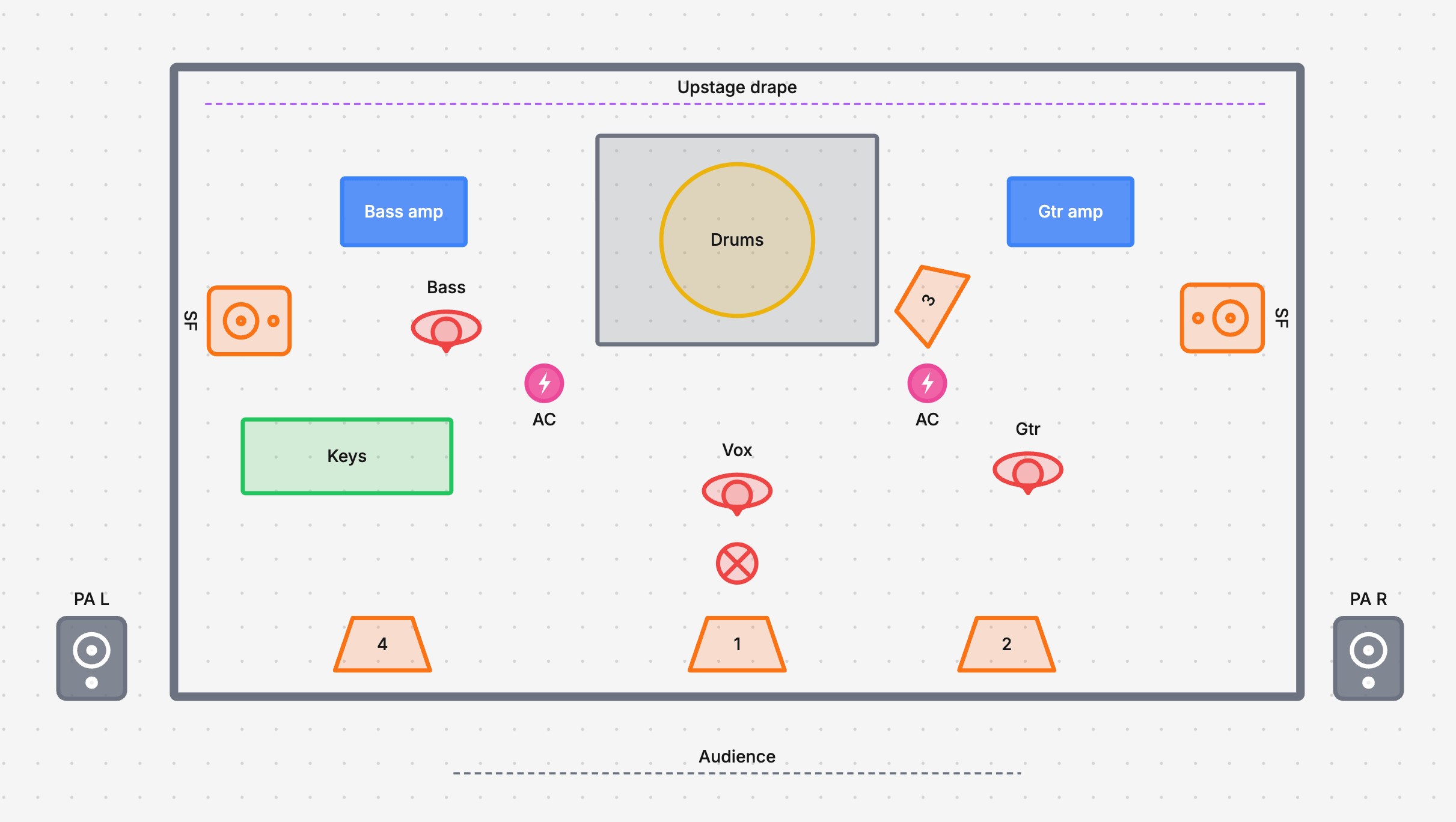
Symbols are drawn top-down. Directional ones, such as the person, chair, speaker, light, projector, camera and stairs, face up when added. Rotate them to point the right way.
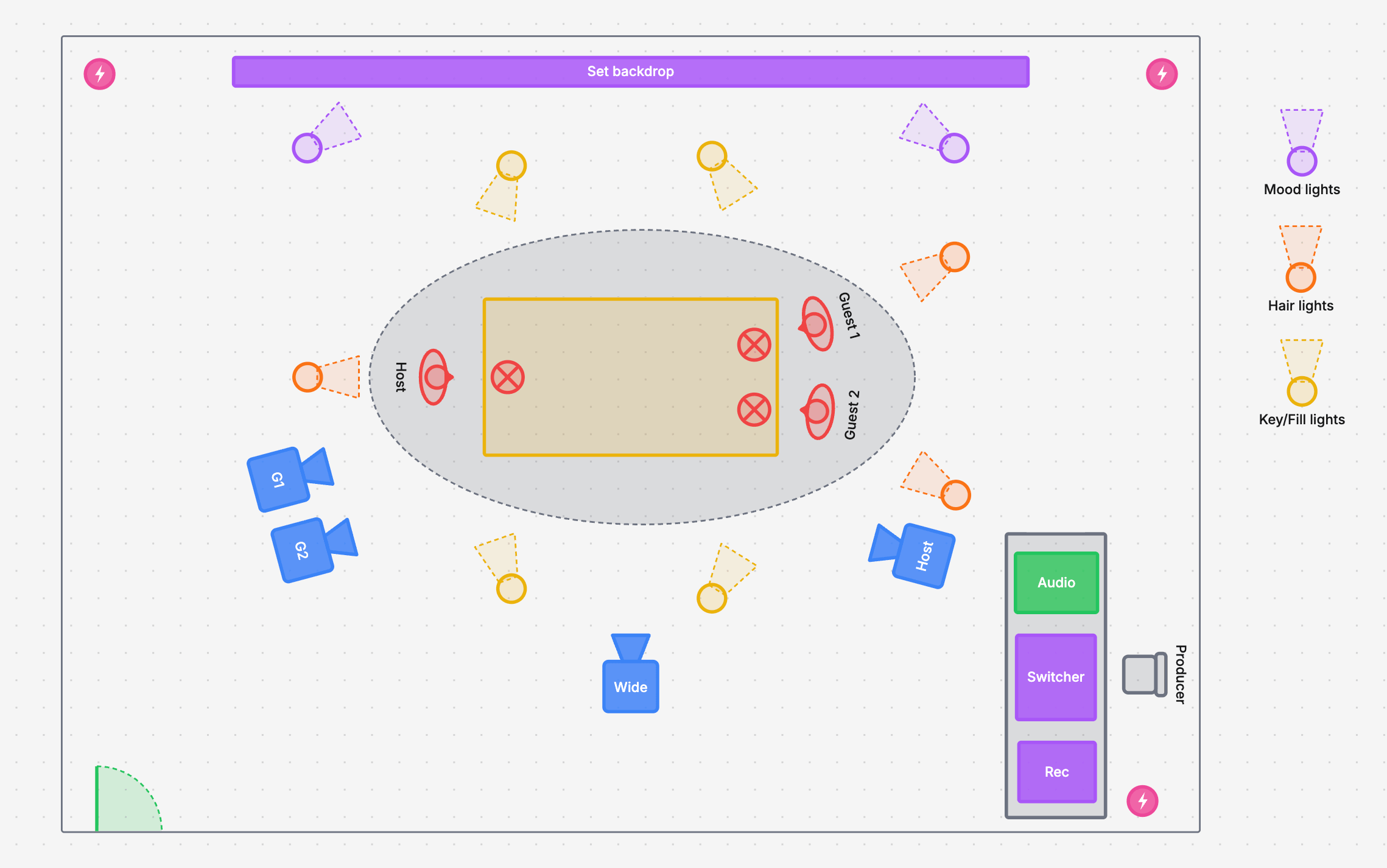
Press Shift+D to show or hide the drawing toolbar. It keeps every shape and symbol one click away while you lay out a room. You can also toggle it from Add › Drawing tools.
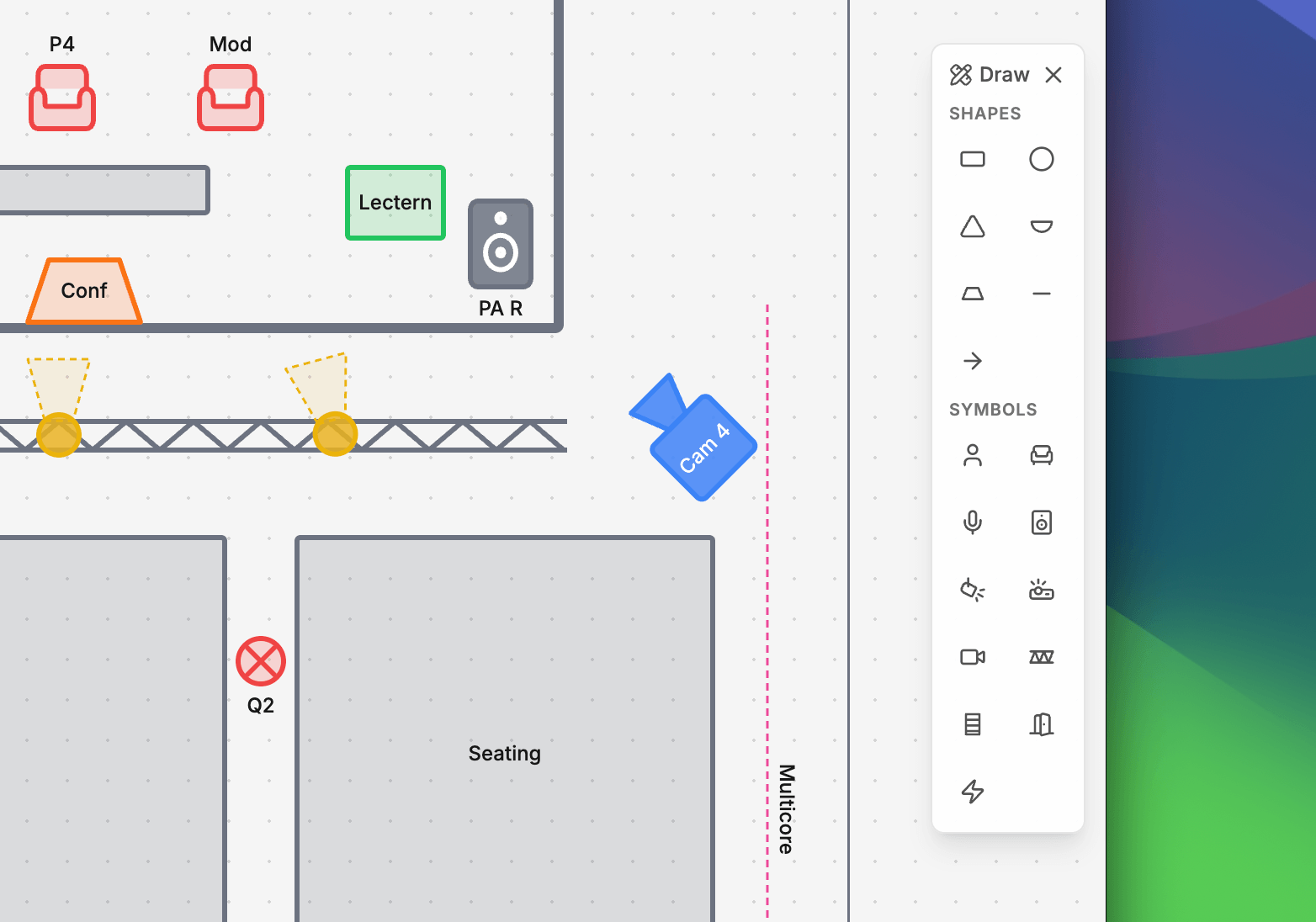
Select a drawing to move it, resize it from its handles, or rotate it. Rotation snaps in 15° steps. Hold Shift to rotate freely.
Lines, arrows and truss are sized by length only.
Select a drawing, or right-click it, to change how it looks:
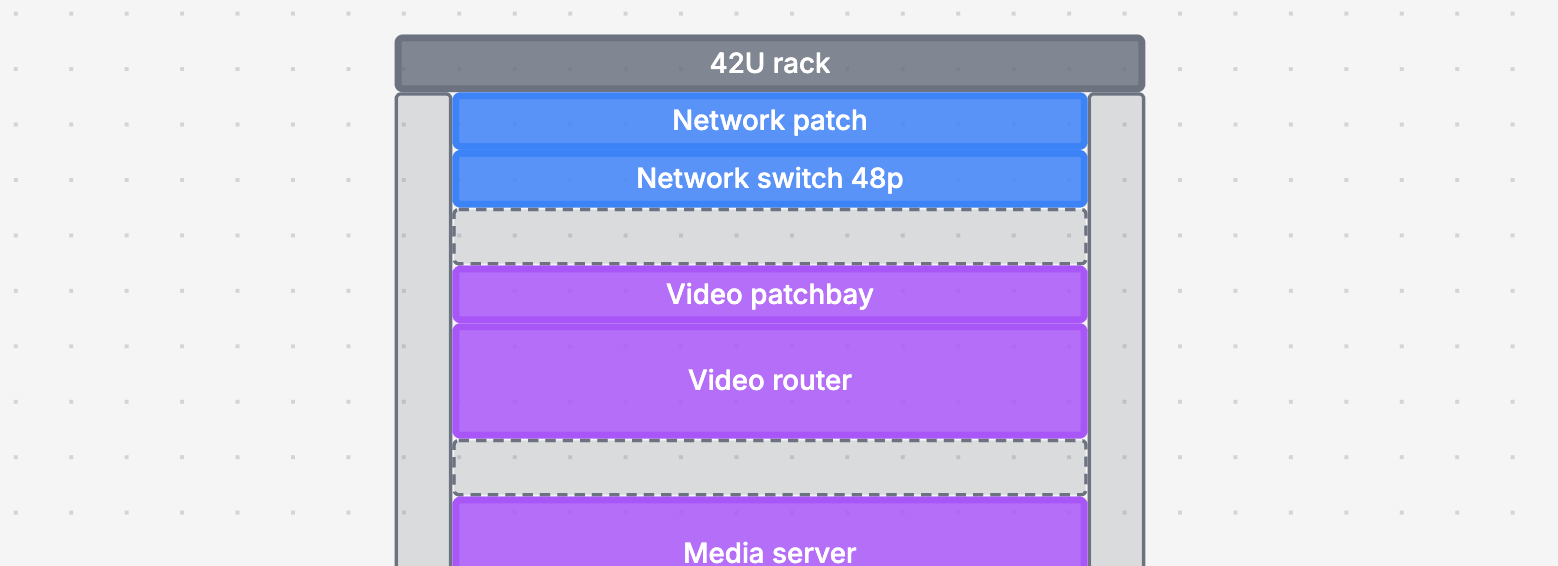
Double-click a drawing, or choose Edit label, to give it a label. Use it to name a stage, number a table or mark a camera position.
Small symbols show their label underneath so it stays readable.
The same menu also lets you:
See Plan basics for the other things you can add to a plan.
Ready to get organised?
Start using H2R Gear to plan your next setup.
Get H2R Gear product updates
New features, templates and tips, straight to your inbox.
No spam. Unsubscribe any time.