New in H2R Gear v2.12
A rewritten cable engine that routes around your gear, plus cable shortcuts and a long list of fixes.
Read more →New in H2R Gear v2.12
A rewritten cable engine that routes around your gear, plus cable shortcuts and a long list of fixes.
Read more →By John Barker • 7 September 2026
Cables are the part of a plan that gets messy fastest. Add a few more items, move a rack across the canvas, and suddenly you are dragging pins around to keep everything readable.
Version 2.12 introduces a rewritten cable engine that does that work for you. It is in beta, so it is opt-in per plan: open Options → Cables and turn on Try new cable routing.
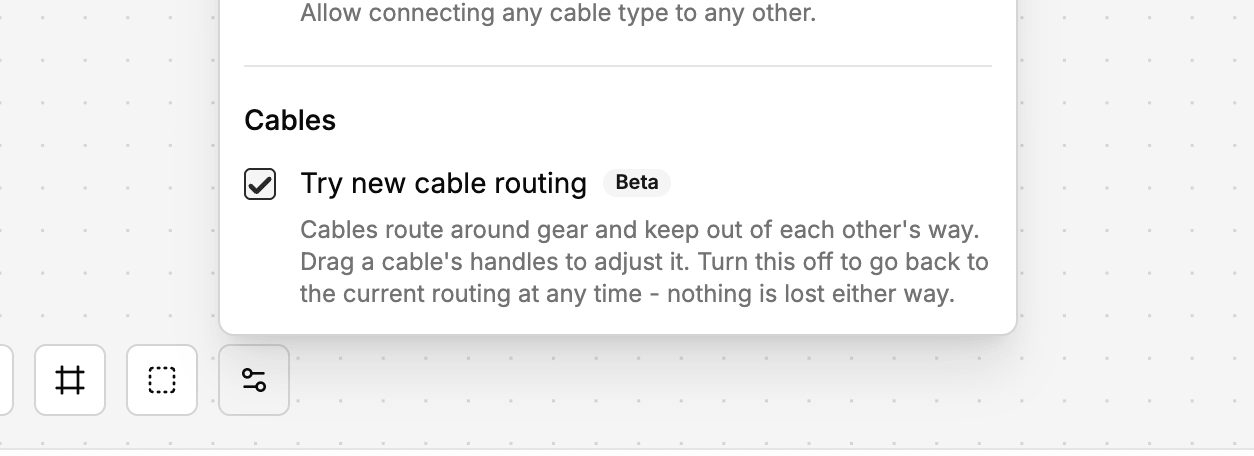
Your existing plans are untouched. Switch it on to try it, switch it back off if you prefer the old behaviour, and nothing is lost either way.
The biggest change: cables now bend around the items on your plan instead of running straight through them.

A cable from one side of the plan to the other will find its way past the racks, screens and monitors in between, so the drawing matches how the run would actually be pulled.
When several cables share the same corridor, they are nudged into their own lanes rather than stacking on top of one another.
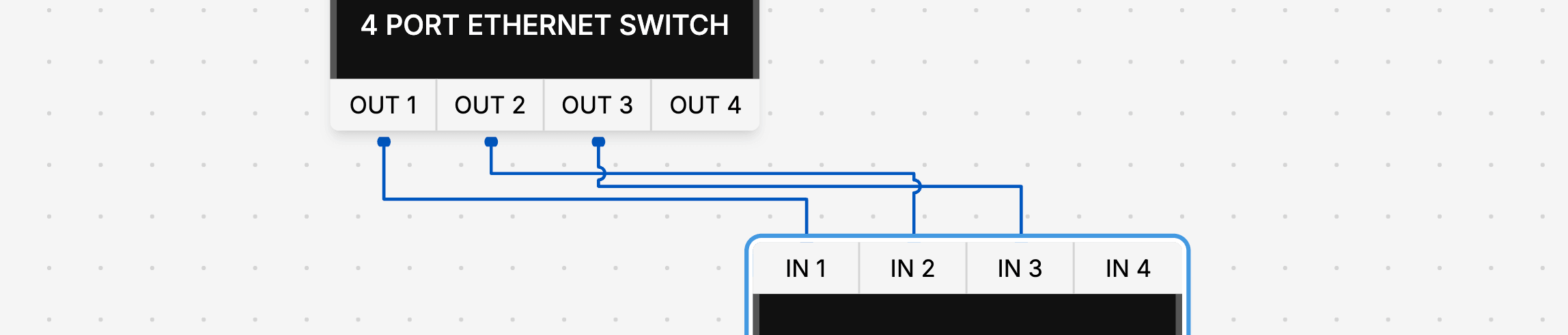
Busy sections of a plan stay legible, and you can follow any single cable from end to end. Where routes do have to cross, the cable bumps introduced in v2.10 still show you which one passes over.
Automatic routing gets you most of the way, but you know your plan best.
Select a cable and drag the handle on any straight run to shift it, the same gesture you will know from draw.io or Visio. The original route stays on screen while you drag, so you can see exactly what you are changing. Your adjustments are saved with the plan, so they are still there next time you open it.
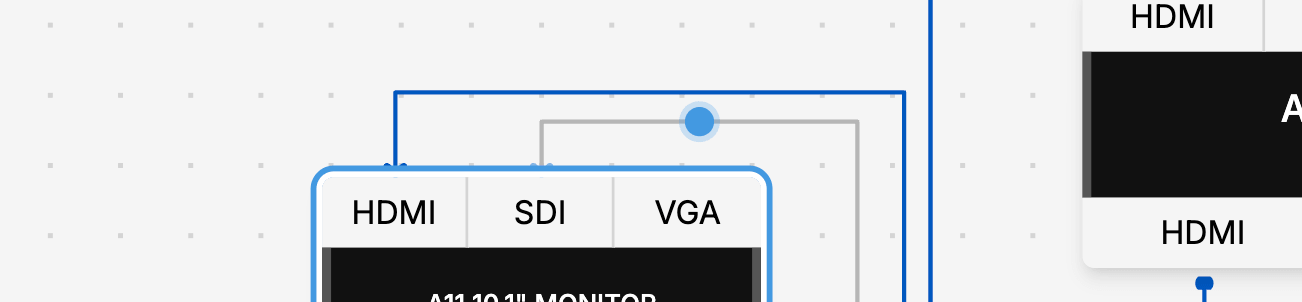
Select a cable and press a key:
All of these are listed in the keyboard shortcuts panel alongside the existing hotkeys.
The cable legend is now a proper export option. Use the Show cable legend toggle in the export dialog to decide whether it appears.
Previously the legend was forced into every export regardless of your setting, which was not what anyone asked for.
A solid list of fixes ships with this release:
Open a plan, head to Options → Cables, and turn on Try new cable routing. Move a rack across the canvas and watch the routes redraw themselves around it.
It is a beta, so if something looks wrong we want to hear about it. For more on working with cables, see the cables documentation.
For the full list of changes, head to the changelog.
Ready to get organised?
Start using H2R Gear to plan your next setup.